Data Entry/Review
module
Using the DCR browser
The DCR browser can be opened in a number of ways. Click
for information...
The DCR browser displays
a list of DCRs, one DCR to a row with a number of information columns.
List
of columns
Clicking the arrow at
the start of a row adds an indented section showing a simple audit
trail for the DCR. Clicking the magnifying glass icon at the start
of this indented row opens the row in a separate window.
Organising data in the browser
To
widen or narrow a column, hover the mouse between column headings
until it displays as a horizontal line with arrows at both ends and
then drag to the required position. See
image
To
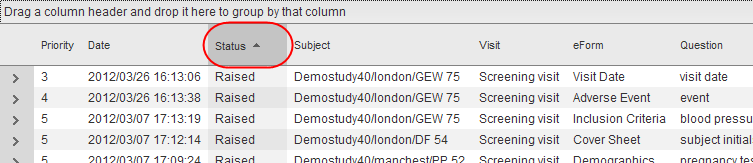
re-order the data within an individual column, click the column heading.
The small arrow within the heading indicates whether the data is sorted
from the top or the bottom. See
image
Depending
on the level of detail that you chose in the search panel, you can
group data by the information in each column.
To create a group,
drag a column heading to the area above the headers. The DCR data
will be re-displayed within the group. See image Repeat
to add more groups.
Each group level can
be expanded/collapsed by clicking the arrows next to each level.
To expand or collapse all the data, right click in the area above
the report and select Full Expand or Full Collapse from the popup
menu.
To remove all groups
and view data in a classic tree view style, right click in the
area above the report and select Clear Grouping from the popup
menu.
Editing a DCR from the browser
Right click on a DCR anywhere
in the row and, depending on your user permissions and the status of the
DCR, you can select from the popup menu to:
Re-raise
the DCR (you need the 'Create DCR' permission to do this)
Respond
to the DCR
Close
the DCR (you need the 'Close DCR' permission to do this)
Edit
the DCR text (you need the 'Create DCR' permission to do this)
Receive
the DCR
When selecting
data:
To select multiple consecutive
rows, hold down the Shift key on your keyboard and select the first
and last rows.
To select multiple rows
that do not appear next to each other, hold down the Ctrl key on your
keyboard and select the individual rows.
Opening an eForm from the browser
Right click on a DCR and select Go to eForm. The eForm on which the
DCR exists will be opened in the main window and if available, the question
will be highlighted. Why
a question might be unavailable
To return to the DCR browser, click the 'Close Current eForm' button
 in the toolbar.
Opening the schedule from the browser
Right click on a DCR and select Go to Schedule. The schedule for the
relevant subject will be opened in the main window. To return to the DCR
browser, you must re-run the report by clicking the Execute button in
the search panel which should still be open.
Searching
for DCRs
Printing
a list of DCRs
Printing
data clarification forms
Exporting
DCR reports
Using the data
browser
Using the SDV
browser
Using the
Notes browser