 List
of icons
List
of icons
The following icons are used throughout the MACRO Data Entry and Data Review modules to indicate the status of and give information about data entered for individual questions, eForms, visits and subjects.
For a comparison of the icons used in different versions of MACRO, click here.
List
of iconsA key to the icons can be viewed by selecting View
> Symbols and Function Keys or by clicking the  icon located at the top of the screen beneath the menu options.
Question Status |
||
|
Invalid |
This icon is only displayed within a validation message and never on an eForm. It indicates that the value entered for a question has satisfied a 'Reject If' validation condition, and the value is not being accepted. |
|
This icon indicates that this question, or a question within this eForm or visit cannot be answered as there are skip conditions assigned that have been satisfied. For example, if previous answers have identified the subject as male, any questions about pregnancy would automatically be made Not Applicable. |
|
|
This icon indicates that this question, or all questions within this eForm, visit or subject have been successfully answered and have not fired any attached validation conditions. The 'OK' status may be applied to an unanswered question if this question has been marked as 'optional' by the study designer. |
|
|
This icon indicates that the data entered for this question or at least one question within this eForm, visit or subject has satisfied a 'Warn if' validation condition and that this warning has been overruled by the user. |
|
|
This icon indicates that this question, or at least one question within this eForm, visit or subject has not yet been answered or if an eForm within this visit has not been opened. It is possible to manually toggle the status of Missing and Not Available. How to change between statuses To toggle a question status between Missing and Not Available:
|
|
|
This icon indicates that this question, or a question within this eForm, visit or subject has had its status manually changed from 'Missing' to 'Not Available', to show that it is not possible to obtain an answer for the question. How to change between statuses To toggle a question status between Missing and Not Available:
Note that this status does not mean that the question is locked. Data can still be entered if the question is marked as 'Not Available'. |
|
|
This icon indicates that the data entered for this question or at least one question within this eForm, visit or subject has satisfied a 'warn if' validation condition. |
|
|
Inform |
This icon indicates that the data entered for this question has satisfied an 'Inform if' validation condition. This icon appears only to the data reviewer; other users will see the OK icon. The 'inform' status can only apply to a question and not to an eForm, visit or subject. |
Notes and CommentsThese icons appear in addition to the main question status icon. |
||
|
This icon indicates that this question has a note attached to it. This icon can only apply to a question and not to an eForm, visit or subject. |
|
|
This icon indicates that this question has a comment attached to it. This icon can only apply to a question and not to an eForm, visit or subject. |
|
|
Note and Comment |
This icon indicates that this question has a note and a comment attached. This icon can only apply to a question and not to an eForm, visit or subject. |
DCRsThese icons appear in addition to the main question status icon. Note that there is no icon for a DCR with the status of Received. |
||
|
This icon indicates that this question, or a question within this eForm, visit or subject has a raised DCR against it. |
|
|
This icon indicates that this question, or a question within this eForm, visit or subject has a responded DCR against it. Data reviewers make like to use this icon as an indication of DCR response. |
|
|
Closed |
This icon indicates that this question, or a question within this eForm, visit or subject has a closed DCR attached to it. |
SDVsThese icons appear in addition to the main question status icon. Note that there is no icon for an SDV with the status of Cancelled. |
||
|
This icon indicates that this question, or a question within this eForm, visit or subject has a planned SDV against it. |
|
|
This icon indicates that this question, or a question within this eForm, visit or subject has a queried SDV against it. |
|
|
This icon indicates that this question, or a question within this eForm, visit or subject has a resolved SDV against it. |
|
Changes to Response DataThese icons appear in addition to the main question status icon. |
||
|
One |
This icon indicates that the question has had one previous value saved to the database. The changed value can be viewed in the audit trail. This icon only appears at the question level, not eForm or visit level. Data reviewers may like to use the icon as an indication of change. |
|
Two |
This icon indicates that the question has had two previous values saved to the database. The changed values can be viewed in the audit trail. This icon only appears at the question level, not eForm or visit level. Data reviewers may like to use the icon as an indication of change. |
|
Three + |
This icon indicates that the question has had three or more previous values saved to the database. The changed values can be viewed in the audit trail. This icon only appears at the question level, not eForm or visit level. Data reviewers may like to use the icon as an indication of change. |
Normal RangesThese icons appear in addition to the main question status icon. |
||
|
High |
This icon indicates that the value entered is above the normal range but within the absolute range. It has been accepted. |
|
Normal |
This icon indicates that the value entered is within the normal range. It has been accepted. |
|
Low |
This icon indicates that the value entered is below the normal range but within the absolute range. It has been accepted. |
CTC gradesThese icons appear in addition to the main question status icon. |
||
|
Grade 1 |
This icon indicates that the laboratory test result has a CTC grade of 1. This is the least abnormal. |
|
Grade 2 |
This icon indicates that the laboratory test result has a CTC grade of 2. |
|
Grade 3 |
This icon indicates that the laboratory test result has a CTC grade of 3. |
|
Grade 4 |
This icon indicates that the laboratory test result has a CTC grade of 4. This is the most abnormal. |
Freeze/Lock |
||
|
This icon indicates that data has been frozen at a question, eForm, visit or subject level. The frozen icon is displayed in the status column of the Data Browser, in the schedule and beside relevant questions in the eForm. Frozen data cannot be changed although you can still create SDVs, DCRs and Notes. |
|
|
This icon indicates that data has been locked at a question, eForm, visit or subject level. The locked icon is displayed in the status column of the Data Browser, in the schedule and beside relevant questions in the eForm. Locked data cannot be changed although you can still create SDVs. |
|
eForm icons seen on the schedule |
||
|
This icon indicates that the eForm is inactive and usually means that you have to complete the eForms in a particular order specified by the study designer. The inactive eForm will become active when all the relevant eForms have been completed. |
|
|
This icon indicates that the eForm is active but has no data entered. The status of a blank eForm may sometimes be referred to as 'requested'.
|
|
The icons may be displayed in the following places:
To the right of a question on an eForm. The question status icon is displayed with any other icons arranged around it. See example
From these icons we can see that this question has a status of Missing and a raised DCR.

At the top of an eForm to the right of the eForm name. See example
From this eForm icon we can see that the Cover Sheet eForm contains at least one question with a missing response.

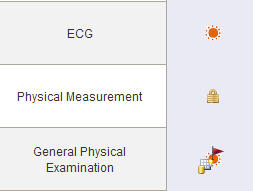
To represent an eForm in the schedule. The top priority question status icon is displayed along with DCR and SDV icons. See example
From these icons we can see that the top eForm contains at least one question with the status of Missing, the middle eForm is locked and the bottom one contains at least one question with a status of Missing, at least one question with a raised DCR and at least one question with a planned SDV mark.
Beneath the visit name in the schedule. The top priority question status icon is displayed along with DCR and SDV icons. See example
From these icons we can see that this visit contains at least one question with a status of OK Warning, at least one question with a raised DCR and at least one question with a planned SDV mark.

Beneath the subject label in the schedule. The top priority question status icon is displayed along with DCR and SDV icons. See example
From these icons we can see that this subject contains at least one question with a status of OK Warning, at least one question with a raised DCR and at least one question with a planned SDV mark.
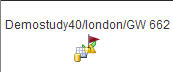
In the first column of the subject list. The top priority question status icon is displayed along with DCR and SDV icons. See example
From these icons we can see that subject 3 contains at least one question with a status of Missing, at least one question with a raised DCR and at least one question with a planned SDV mark.

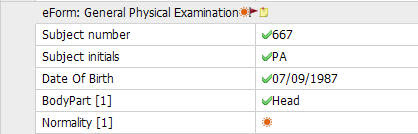
In the Data Browser. The icons are displayed in the following order: Question status, DCR, SDV, notes, freeze/lock. See example
Icon
priorityWhen a subject/visit/eForm contains questions with differing statuses, the following hierarchy applies:
Warning
OK Warning
Missing
OK
Not Available
For example, if an eForm contains questions with the statuses 'Warning' and 'Missing', it will always be represented by the 'Warning' icon as this has the highest priority.
When a subject/visit/eForm contains questions with DCRs of differing statuses, the following hierarchy applies:
Raised
Responded
Closed
For example, if an eForm contains questions with the DCR statuses 'Responded' and 'Closed', it will always be represented by the 'Responded' icon as this has the highest priority.
When a subject/visit/eForm contains questions with SDVs of differing statuses, the following hierarchy applies:
Queried
Planned
Done
For example, if an eForm contains questions with the SDV statuses 'Planned' and 'Queried', it will always be represented by the 'Queried' icon as this has the highest priority.
Subject
statusThe status of a subject who has no data entered may sometimes be referred to as 'Requested' although there is no icon for this.
A subject's status is only set to 'OK' if all visits are complete. If any visit contains a non-repeating eForm which is blank, the subject status will be 'Missing' even if all other eForms have status 'OK'.
Clinically
coded questionsThere are no icons for the clinical coding statuses.


