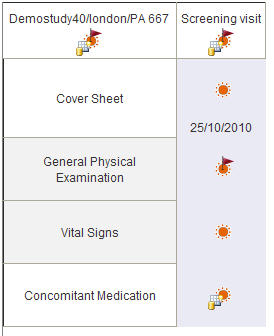
The schedule enables you to see all the eForms that make up a study for a particular subject. It is sometimes also referred to as the visit or subject schedule.
The schedule is laid out in a grid, with visits across the top and eForm names down the left side. An eForm icon appearing at an intersection indicates that the corresponding eForm needs to be completed at the time of the corresponding visit.
The QuickView version of the schedule displays the study as a tree view. Help on QuickView schedule...
The schedule is designed to lead you through all the forms and visits in order. Begin at the top left, with the top eForm in the first visit and work down the eForms until you come to the end of the visit. Then move to the top eForm in the second visit column and work down through the eForms and so on.
The current (highlighted) eForm is also indicated by an arrow to the left of the eForm name and the next available eForm is highlighted on opening the schedule. See image This reduces the need to move around the schedule. You can switch this option off in Tools > Options > Schedule. When switched off, the first eForm in the schedule will be highlighted, whatever its status.
Note: Information such as subject/eForm labels, and visit/eForm dates is defined by the study designer and is only created when the user enters data in the specified questions. This means that the schedule for a new subject will never display any of this information.
Each subject, visit and eForm is indicated by an icon or set of icons representing its status. The icon is made up of the main question status icon with any relevant SDV, DCR, note and comment icons arranged around it. For questions, SDVs and DCRs, a priority order determines which icon is displayed if the subject/visit/eForm contains questions with differing statuses. Help on priority of status icons...
A key to all the symbols used can be viewed at any time by selecting
View > Symbols and Function Keys or by clicking the Symbols and Function
Keys icon  located at the top of the screen
beneath the menu options. Explanation
of MACRO symbols...
located at the top of the screen
beneath the menu options. Explanation
of MACRO symbols...
 Subjects Visits eForms
Opening the schedule for a subject