To search for subjects in any of the ways
listed here, you need the 'View data' permission
To search for subjects in any of the ways
listed here, you need the 'View data' permission
To search for subjects in any of the ways
listed here, you need the 'View data' permission
There are three ways of viewing existing subjects:
This lists all existing subjects.
Select View > Subject List or click the Subject
List icon  located at the
top of the screen beneath the menu options.
located at the
top of the screen beneath the menu options.
The Subject List opens in the main window.
Details are provided for each subject under several column headings. More details
Click on a column heading to sort the list for that column. Click again to reverse the order.
Double click a subject to open the schedule.
You can change the number of records displayed on a page and also the maximum number of records retrieved. Set this in Tools > Options > Environment.
The search panel enables you to specify a subset of subjects to be displayed in the full Subject List:
Select View > Search Panel or click the Open Search
Panel icon  to open the search panel.
General
help on using the search panel
to open the search panel.
General
help on using the search panel
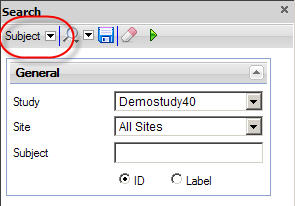
Select Subject from the Data drop down list. See image
Select your search criteria. Help on each field within the search panel
Click the Execute search button  to view the Subject List in the main window.
The Subject List report can be printed and exported.
This lists all existing subjects in a side panel so that you can work with it open. Fewer details are provided for each subject:
Select View > Subjects QuickView or click the Subject
QuickView icon  located at
the top of the screen beneath the menu options.
located at
the top of the screen beneath the menu options.
The QuickView list opens on the left side of the screen.
The details provided for each subject are more basic than in the full list, with only Study/Site/Subject label being displayed.
Double click a subject to open the schedule.
 at
the top of the panel.
at
the top of the panel. at the top of the panel to save the current combination of
search settings.
at the top of the panel to save the current combination of
search settings. at the top of the panel
and select a search from the drop down list.
at the top of the panel
and select a search from the drop down list.