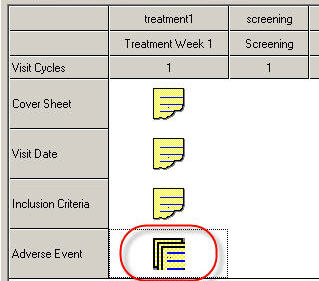
The schedule is a visual display showing all of the eForms and visits that are in the study, and indicating which eForms need to be completed at each subject visit. You need to arrange the visits and eForms in a way that will best reflect the information that is to be collected. Schedule layouts may vary greatly between studies.
Before you can create the schedule, you need to have created at least one eForm and at least one visit.
Open the schedule by clicking the Visits shortcut button.
The schedule is displayed as a grid. See image
Visits are displayed in columns, with the visit code and title at the top. eForms are displayed in rows, with the eForm title in the left margin.
 To add an eForm to a visit, you need the 'Add eForm to visit' permission
To place an eForm in a visit, click once on the schedule at the intersection
of the eForm row and the column of the visit in which the eForm should
be completed. A single eForm icon will appear.
See
image
Alternatively, right click in the desired place and select Allow
Single eForm from the popup.
Clicking in the same place once again makes the eForm a repeating eForm. (This means that the data entry user will be able to fill in several copies of the eForm). At the second click, a repeating eForm icon will appear. See image
Be careful that your two single clicks are not too close together. A double click on an eForm icon will open the eForm instead. Alternatively, right click at the intersection or on a single eForm icon and select Allow Multiple eForms from the popup menu.
Once a study has been opened for data collection and thereafter, eForms cannot be removed from the schedule. To avoid accidental changes, you will be asked to confirm your action if you try to add an eForm or change an existing eForm into a repeating eForm once a study has been opened.
To remove an eForm from a visit, you need the 'Remove eForm from visit'
permission
To remove a single eForm from a visit, click twice. At the first click, a repeating eForm icon will appear. At the second click, the icon will disappear.
Be careful that your two single clicks are not too close together. A double click on an eForm icon will open the eForm instead.
To remove a repeating eForm
from a visit, click once.
Alternatively, right click on the eForm icon and select Remove
eForm from Visit from the popup menu.
Note: You should not remove an eForm from a visit once the study has been opened for subject data entry.
To re-order the eForms in the left margin, click on an eForm name and drag it up or down to a new location. This order is reflected in the questions list if not ordered alphabetically, and also in the order of the eForm tabs.
To re-order the visits, click on a visit code and drag it left or right to a new location.
To make a repeating visit, click in the Visit cycles row and enter the number of cycles you require. See image This means that the data entry user will be able to fill in more than one copy of the entire visit.
To make the visit cycle indefinitely, enter either -1 or the word Unlimited.
You can use the Arezzo Composer to impose constraints on your schedule so that users must complete one eForm before they can open another. More info on this...