 MACRO setup
To set up randomisation, follow the instructions below. If you wish to see an example of a study that has been set up for randomisation, please request the ALEADEMO study.
MACRO setupBefore you start, ensure that the MACRO WEB server has permission to access secure URLs over the internet.
You must create a category question that the data entry user can use to select the investigator responsible for randomisation.
Create a category question named CLINICIAN. Under the Values tab, add a value for the active investigator/s defined in the TenALEA study definition. The investigator name/s will be provided by TenALEA staff. See example

Place this question onto the relevant eForm. You may choose to use an existing eForm or create a special Randomisation eForm.
Help on creating category questions...
Click the Study button to open the Study Definition window.
Click the Registration tab.
Click the Server Settings button, select Trial Office and click OK.
Click Uniqueness Checks, add the following checks and click OK.
|
Code |
Expression |
|
DEPTPERS_ID |
Enter the location of the 'CLINICIAN' category question created earlier. Click the fx button to open the Expression Builder and select the relevant Visit/eForm/Question from the drop down lists at the bottom right of the screen. Click OK to return to the Uniqueness Checks screen. |
|
SHAREDSECRET
|
Enter the password used to log onto the TenALEA server, enclosed in single quotation marks. To be provided by TenALEA staff. |
|
USERDN |
Enter the email address that will be registered against the randomisation, enclosed in single quotation marks. To be provided by TenALEA staff. |

Randomisation will occur at the trigger point specified in the 'Subject Registration occurs after' fields at the top of the Registration window. See example

Add the following line to the MACROUsersettings40.config file, found by default in the application folder, for each study that uses ALEA randomisation:
<add key="databasecodestudynamerandomisationurl" value="xxx.tenalea.net/infermed/aleaodmprocessor/QSGateway.aspx" />
Replace databasecode with the MACRO database code, studyname with the name of the study and replace xxx with the reference to the environment which is being used for randomisation. ALEA provides 4 distinct environments:
|
Development |
dev.tenalea.net |
|
Test |
test.tenalea.net |
|
Acceptance |
acc.tenalea.net |
|
Production |
prod.tenalea.net |
It is highly recommended to configure MACRO to register on the test environment before connecting to the production environment.
Add a line for each study that you wish to configure. Specifying both a database and a study means that you can have studies with the same name in different databases configured to use normal registration or configured to use randomisation with different randomisation servers.
The following examples configure StudyA and StudyB in the M4_production database and StudyB and StudyC in the M4_test database:
<add key="M4_productionStudyArandomisationurl" value="https://prod.tenalea.net/infermed/aleaodmprocessor/QSGateway.aspx" />
<add key="M4_productionStudyBrandomisationurl" value="https://prod.tenalea.net/infermed/aleaodmprocessor/QSGateway.aspx" />
<add key="M4_testStudyBrandomisationurl" value="https://test.tenalea.net/infermed/aleaodmprocessor/QSGateway.aspx" />
<add key="M4_testStudyCrandomisationurl" value="https://test.tenalea.net/infermed/aleaodmprocessor/QSGateway.aspx" />
ALEA setupCarry out the following steps for each MACRO study in which you want to use ALEA randomisation.
In the ALEA module, System Admin and System Settings, set the IP address of the MACRO server.
On the General study data screen, enter the study password that was defined in the SHAREDSECRET field in the Uniqueness Checks section during the MACRO setup. See example

Complete the Study data numbering screen. See example

On the Edit form question screen, set up the stratification factors as category questions using the codes assigned to the categories in MACRO. See example

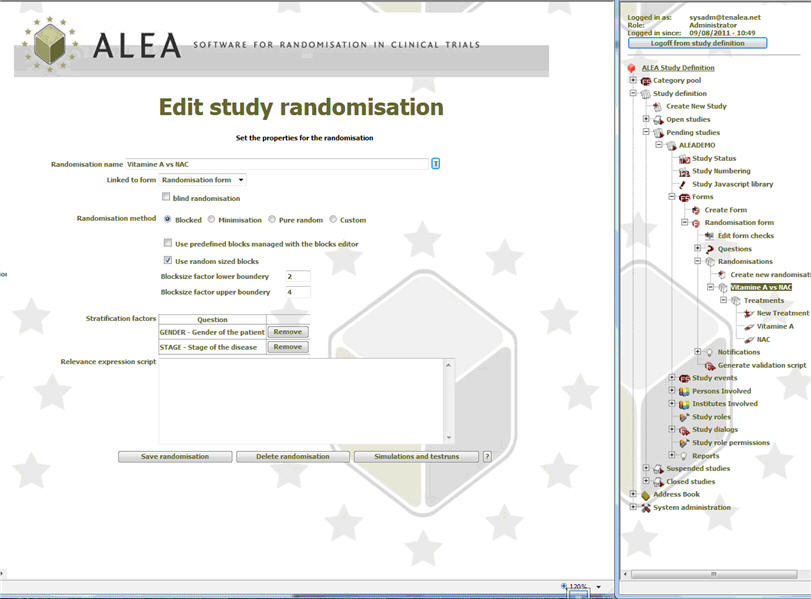
On the Edit study randomisation screen, set up the randomisation according to the protocol. See example
Select the ’Persons Involved’ link from the treeview under the StudyName.
Type the first 3 letters of the surname of the person in the ’Search for’ field.
Click Search Person.
Check Investigator for all persons involved who will act as investigator in the study.
Note the DEPTPERS_ID displayed under the label ’Edit person on study access list’. This number is required to map clinicians between ALEA and MACRO.

Viewing the registration resultWhen randomisation is set up in MACRO as described above, subject registration is carried out in a special way.
Instead of performing the usual uniqueness checks, MACRO sends the uniqueness values to the ALEA server indicated in the MACROUsersettings40.config file. The result is saved in the Trial Subject subjectidentifier field.
If you wish, you can create a derived question to display this identifier. To do this, create a text question named REGRESULT and enter person:subjectidentifier in the Derivation field. This question can be placed on an eForm and will display the registration result once registration has taken place via the ALEA server.