Archive module
Understanding the PDF output
XML documents containing archives of each selected site (or sites grouped by selected subjects) are saved in the site directory as intermediate output. They are then used to generate the final PDF document which consists of the following parts:
Page Header
At the top of each page, the Study, Site and Subject identifier and Subject status is displayed.
Page Footer
At the bottom of each page, the page number is displayed.
Item Header
Above each item in the document is an item header identifying the item. The following may appear in the header, depending on the level of the item:
Bookmarks
The Bookmarks tab provides the following shortcuts to points in the document:
|
By Domain
|
All eForms in the study are listed in alphabetical order. Under each eForm is listed the visit in which that eForm appears, in order of occurrence.
See example
The visit items can be clicked on to jump to the eForm/visit instance in the document.
|
|
By Visit
|
All visits of the study are listed in order of occurrence. Under each visit is listed the eForms that appear in that visit, in alphabetical order. The eForm items can be clicked on to jump to the visit/eForm instance in the document.
|
|
Current Data
|
A link to the beginning of the current data section of the document.
|
|
Audit Trail
|
A link to the beginning of the Audit Trail section of the document.
|
|
DCRs
|
A link to the beginning of the DCR section of the document.
|
|
Notes
|
A link to the beginning of the Notes section of the document.
|
|
SDVs
|
A link to the beginning of the SDV section of the document.
|
Current Data
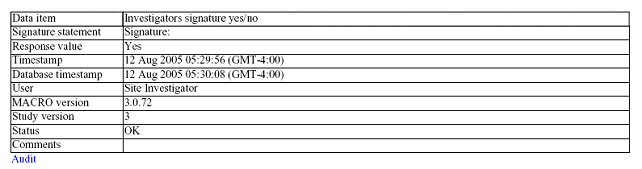
The current data section of the document shows the current response values of the subject. Responses are grouped into their eForms which are listed in order of occurrence. Each response appears as a table listing the data-item name, signature statement (if an electronic signature question), response value, timestamp, database timestamp, user, software version, study version, status, validation message (if any), comments (if any and if configured), reason for change (if applicable), reason for overrule. Beneath the table appear links to the response audit trail (if any), DCRs (if any), notes (if any) and/or SDVs (if any).
See example
Audit Trail
The Audit Trail section of the document shows the history of each response. Each response appears as a table listing the timestamp, database timestamp, response value, reason for change, overrule reason, user, software version, study version, status, validation message and comment.
See example
DCRs
The DCR section of the document shows an audit trail for each DCR. The data item name is also a link to the DCR’s response current data. Each DCR appears as a table listing the response value, DCR text, timestamp, user, and DCR status.
See example
Notes
The Notes section of the document shows a note audit trail for each note. The data item name is also a link to the note’s response current data. Each note appears as a table listing the response value, note text, timestamp, user, and note status.
See example
SDVs
The SDV section of the document shows an SDV audit trail for each SDV. The data item name is also a link to the SDV’s response current data. Each SDV appears as a table listing the response value, SDV text, timestamp, user and SDV status.
See example
PDF Blank Study Archive
If the 'Output blank study structure' option has been selected in the Output tab of the Advanced Options, a blank PDF version of the study will be created.
See example
This will be created as 'studyname annotated.pdf' where studyname is the name of the study being archived. This file will be created inside the time stamped base archive folder.
The output will be in the format of the current data with data items being grouped into their eForms, with both data items and eForms listed in order according to the study’s definition. Only the data item name and signature statement (if an electronic signature question) will be pre-filled.
Attachments
Multimedia attachments are copied from the Documents folder into the Attachments folder in the archive output folders. There will be an attachments folder for each PDF site/investigator folder. The output formats provide links to the attachments. Read-only files will not be copied but the user will be notified if there are any.
Archiving a study
Understanding the HTML output
Output options